In 1950 a new theory was launched concerning a mathematical notation: Regular expressions. The idea behind it was simple: A set of characters that could help define and search for particular patterns in text. Nowadays we use it for much more. Let’s take a look at how we can use regular expressions with C#.
Regular expressions are usually used to search in text. Most search options on websites use this notation to quickly determine if a text contains a specific set of characters. We can also use regular expressions to replace specific matches in a big text (string).
Another use of regular expressions is web scraping. Which is a technique that reads certain web pages to extract certain data for its own use. Web scrapers scrape websites once in a while to check for new content in the HTML. Regular expressions are a great way to filter certain HTML elements within that scraped HTML.
Table Of Contents
Goals
In this article, you will:
- Understand the idea behind regular expressions
- Know how regular expressions work and how to use them against a string
- Be able to implement regular expressions in C#
- Understand the difference between regular expression matches and groups
- Know how to use regular expressions for validating values
- Be able to replace text in strings using regular expressions
Regular Expressions vs Contains
So, why not use Contains if you want to check if a string contains a certain piece of text? Well, because of this:
- Contains is very powerful for simple cases.
- Contains is not convenient for complex search patterns.
- Regular expressions are better and faster when you want to use complex searches.
Contains is quicker when you want to use simple search commands.
It really depends on what you want. If you want to check if a string contains the word “hello”, then use the Contains. If you want to check if an HTML page contains a certain link with a specific style class; use Regular expressions.
Testing And Exploring
Before I start showing some examples it is a good idea to figure out how you can test regular expressions. I mean, you could just read this and accept what I am saying, or try it out yourself.
If you want to skip all my hard work of typing it all out for you… You can find the examples I created on GitHub. Here you can check the code and/or download the solution:
https://github.com/KensLearningCurve/RegularExpressionsWithCSharp
One of the best online applications to test and build regular expressions is https://regexr.com/. I’ve been using it for years. With this great tool, you can easily try out your regular expressions and change them. It also has a lot of information and a cheat sheet.
A Simple Example
Let’s say I have the following string:
This is the season. A season of joy. Season of christmas.
I want to find all the seasons, but one ‘season’ is with capital. If I would use simple Contains(‘season’) I would only get the first two. A Contains(‘Season’) will only show the third one. A regular expression can get them all.
Note: Yes, in C# you can ignore the capitals with the contains, but let’s assume you can’t.
If I would use the following regular expression on regexr.com I will get all the seasons from the string:
[sS]eason
So, what is this magic?… Regular Expressions, duh. Let’s break it down:
The brackets indicate a certain set of characters. I indicate that the ‘s’ may be written as a ‘s’ and ‘S’. This gives me the following result:
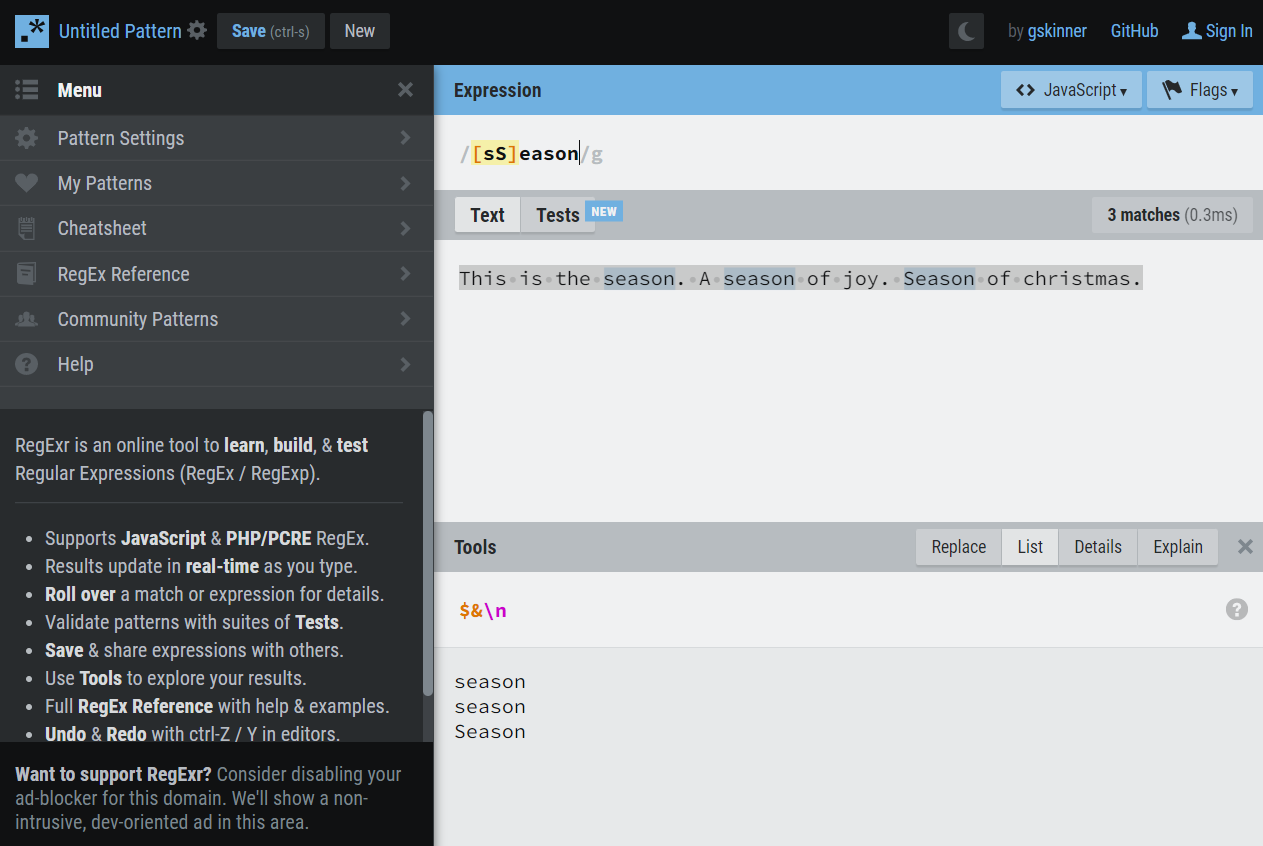
Semi Simple Example
Let’s take it up a nudge. Let’s assume you have the following HTML:
<p>
    This is some text from a website.
    I have used <a href="https://www.google.com">Google</a> to find it.
    I did not use <a href="https://www.bing.com ">Bing</a> to find it.
</p>
Now I want all the hyperlinks from that text selected. There are two and both have different content. A contains can’t do this. So let’s create a regular expression for this:
<a[^>]+href="(.*?)"[^>]*>(.*?)</a>

I could explain the whole regular expression, but… Regexr.com already does that. If you look closely at the screen or the screenshot above, you see a button Explain. If you press that one you will see all the segments explained.
The explanation also shows an error:
Error: Unescaped forward slash. This may cause issues if copying/pasting this expression into code.
This is correct. The </a> has a forward slash, which is also used in code to escape characters in a regular expression. We better escape the escape-character (…):
<a[^>]+href="(.*?)"[^>]*>(.*?)<\/a>
Regular Expressions In C#
While this is all fun you might wonder how we can use those cool regular expressions in C#. For this, we use the class Regex, which is located in the namespace System.Text.RegularExpressions. Let’s take the previous example with the hyperlinks and write that to C#. I am using unit tests to test and execute the regular expressions.
Match
Let’s start with a simple Regex.Match(). This match will check if certain parts in the string matches the regular expression. In our case, with the hyperlinks, we should get two matches.
First, we define the parameter, connect that to the string, and let Regex figure it out.
[Fact]
public void Hyperlinks()
{
    string html = "<p>This is some text from a website. I have used <a href=\"https://www.google.com\">Google</a> to find it. I did not use <a href=\"https://www.bing.com \">Bing</a> to find it.</p>";
    string pattern = @"<a[^>]+href=""(.*?)""[^>]*>(.*?)<\/a>";
    MatchCollection regexMatches = Regex.Matches(html, pattern);

    Assert.Equal(2, regexMatches.Count);
}
There are two match methods: Match and Matches. The first one will only return the first match it will find in a Match. The second will return all the matches in a MatchCollection. Since I expect two matches I have used the latter.
The variable html contains the string with the hyperlinks. The second variable, pattern, is the regular expression. After that, I use RexMatches with both variables (string first, pattern second) and fill the regexMatches.
The assertion expects 2 results, which is correct.
Next up is how we can iterate through the matches and check if the contents of those matches are correct.
[Fact]
public void Hyperlinks()
{
    string html = "<p>This is some text from a website. I have used <a href=\"https://www.google.com\">Google</a> to find it. I did not use <a href=\"https://www.bing.com\">Bing</a> to find it.</p>";
    string pattern = @"<a[^>]+href=""(.*?)""[^>]*>(.*?)<\/a>";
    MatchCollection regexMatches = Regex.Matches(html, pattern);

    Assert.Equal(2, regexMatches.Count);

    List<string> expected = new() { "<a href=\"https://www.google.com\">Google</a>", "<a href=\"https://www.bing.com\">Bing</a>" };

    foreach (Match match in regexMatches)
    {
        if (match.Success)
        {
            Assert.True(match.Value == expected[0] || match.Value == expected[1]);
        }
    }

}
Let’s break down the highlighted lines. First I create a list with expected values. This is not the best way to do it, but I want to keep it simple.
Then I start a ForEach and loop through the matches. I check if the match is successful. This is not needed if you work with Regex.Matches, but it is a good idea if you use Regex.Match.
If the match is a success I check if the value of the match is correct.
Groups
If you look at the regular expression you will see some parentheses. These are groups. We can extract those groups from a single match. There are two groups in the regular expression I used above:
- The actual link in the href
- The text between the anchors
<a[^>]+href=”(.*?)“[^>]*>(.*?)<\/a>
To extract those groups from a match isn’t really hard. Just keep in mind that the number of groups in a match is always plus 1: The first group is always the complete string. Let’s take a close look at it with some code:
[Fact]
public void Hyperlinks()
{
    string html = "<p>This is some text from a website. I have used <a href=\"https://www.google.com\">Google</a> to find it. I did not use <a href=\"https://www.bing.com\">Bing</a> to find it.</p>";
    string pattern = @"<a[^>]+href=""(.*?)""[^>]*>(.*?)<\/a>";
    MatchCollection regexMatches = Regex.Matches(html, pattern);

    Assert.Equal(2, regexMatches.Count);

    List<string> expected = new() { "<a href=\"https://www.google.com\">Google</a>", "<a href=\"https://www.bing.com\">Bing</a>" };

    foreach (Match match in regexMatches)
    {
        if (match.Success)
        {
            Assert.Equal(3, match.Groups.Count);

            if(match.Value == expected[0])
            {
                Assert.Equal(expected[0], match.Groups[0].Value);
                Assert.Equal("https://www.google.com", match.Groups[1].Value);
                Assert.Equal("Google", match.Groups[2].Value);
            }
        }
    }
}
First I assert if the number of groups is correct (3). Since I don’t know which of the matches comes first I double-check and only check for the google-link.
On line 20 I expect the value of the first group to be the complete string (<a href=\”https://www.google.com\”>Google</a>). Line 21 is a check on the second group, which should be only the link inside the href (https//www.google.com). And line 22 contains the last group, which should only be the text between the HTML anchors (Google).
Groups are a great way to extract specific parts of the match from a regular expression. With some simple parentheses, you can get it easily by using the Groups property of a match.
Validations
Another great use of regular expressions is with validations. You can use them to validate if something is an e-mail address or a phone number for example. Whatever validation you want, don’t try to create them yourself. Most of these are already created or built. But let’s take a look at a regular expression I have been using for a very long time. It validates if a text is a valid e-mail:
(?:[a-z0-9!#$%&'*+/=?^_`{|}~-]+(?:\.[a-z0-9!#$%&'*+/=?^_`{|}~-]+)*|"(?:[\x01-\x08\x0b\x0c\x0e-\x1f\x21\x23-\x5b\x5d-\x7f]|\\[\x01-\x09\x0b\x0c\x0e-\x7f])*")@(?:(?:[a-z0-9](?:[a-z0-9-]*[a-z0-9])?\.)+[a-z0-9](?:[a-z0-9-]*[a-z0-9])?|\[(?:(?:(2(5[0-5]|[0-4][0-9])|1[0-9][0-9]|[1-9]?[0-9]))\.){3}(?:(2(5[0-5]|[0-4][0-9])|1[0-9][0-9]|[1-9]?[0-9])|[a-z0-9-]*[a-z0-9]:(?:[\x01-\x08\x0b\x0c\x0e-\x1f\x21-\x5a\x53-\x7f]|\\[\x01-\x09\x0b\x0c\x0e-\x7f])+)\])
Let’s create a unit test for this to see if it really works.
[Theory]
[InlineData("some.email", false)]
[InlineData("some.email@server.com", true)]
[InlineData("someemail@server.com", true)]
[InlineData("someemail@server", false)]
[InlineData("someemailitvitae.com", false)]
public void Validate_An_Email(string email, bool isValid)
{
    Regex r = new Regex(@"(?:[a-z0-9!#$%&'*+/=?^_`{|}~-]+(?:\.[a-z0-9!#$%&'*+/=?^_`{|}~-]+)*|""(?:[\x01-\x08\x0b\x0c\x0e-\x1f\x21\x23-\x5b\x5d-\x7f]|\\[\x01-\x09\x0b\x0c\x0e-\x7f])*"")@(?:(?:[a-z0-9](?:[a-z0-9-]*[a-z0-9])?\.)+[a-z0-9](?:[a-z0-9-]*[a-z0-9])?|\[(?:(?:(2(5[0-5]|[0-4][0-9])|1[0-9][0-9]|[1-9]?[0-9]))\.){3}(?:(2(5[0-5]|[0-4][0-9])|1[0-9][0-9]|[1-9]?[0-9])|[a-z0-9-]*[a-z0-9]:(?:[\x01-\x08\x0b\x0c\x0e-\x1f\x21-\x5a\x53-\x7f]|\\[\x01-\x09\x0b\x0c\x0e-\x7f])+)\])");

    Assert.Equal(isValid, r.IsMatch(email));
}
A pretty simple unit test. I created some inline data with all kinds of e-mail addresses, right and wrong. Behind them, I note if they should be correct or not.
Inside the unit test, I first initialize the Regex class and add the pattern.
The assertion simply checks if the isValid (set by the inline data) matches the result of IsMatch.
Replace
Another great feature of regular expressions is that you can use them to replace text with patterns. If you have an editor like Notepad++ or Visual Studio (C0de) you have a search and replace function. Often these also include search and replace with regular expressions.
So, how does it work? Let’s take a look at the example below:
[Fact]
public void Replace_Text_With_RegEx()
{
    string testString = "This is a text with HTML: <b>Hello</b>, <i>world</i>. As you can see it also contains a link to <a href=\"https://www.bing.com\">Bing</a>";

    Regex regex = new("<[^>]+>");
    string result = regex.Replace(testString, "");
    Assert.Equal("This is a text with HTML: Hello, world. As you can see it also contains a link to Bing", result);
}
First I declare a string with some example text. It contains HTML elements and I want to remove them. On line 6 I declare and initialize Regex. It contains a regular expression that should find all the HTML elements I want to remove.
Line 7 executes the Replace method. The first parameter is the string I want to edit (a.k.a. replace) and the second parameter is the string I want to replace the regular expressions’ matches.
And finally, line 8 checks if the expected string is equal to the result of line 7.
This way of replacing strings can also be used to change date/time formats.
Conclusion
Although regular expressions feel like magic, they are super handy when it comes to complex searches, replacements, or validations. They work a bit faster if you build and use them correctly (but that’s with everything).
One thing: Regular expressions can be hard to create yourself. Therefore it’s better to search the internet for those regular expressions you need.